Build a Copilot with Your Data
❗Important
Azure AI Studio is currently in Preview. Features used in this repository use preview versions. They are provided without a service level agreement, and they are not recommended for production workloads. Certain features might not be supported or might have constrained capabilities. For more information, see Supplemental Terms of Use for Microsoft Azure Previews.
Learning Objectives
This tutorial walks you through the process of creating a copilot enterprise chat UI using custom Python code to ground copilot responses in your company data and APIs. By completing these steps, you'll also gain familiarity with the core features and functionality available in the Azure AI Studio preview, Azure AI CLI and Azure AI SDK for Python.
At the end of this exercises, you should know how to:
1. Setup your dev environment - using prebuilt dev containers.
2. Create your AI project - using Azure AI CLI ai init command.
3. Create your AI Search index - using Azure AI CLI ai search command.
4. Run copilot with a sample question - using Azure AI SDK for Python.
5. Evaluate copilot performance - using chatgpt to compare results.
5. Deploy copilot to Azure - and use the endpoint in your own apps.
The sample is just a starting point that you can customize further, with your own data and additional capabilities, to meet your specific requirements.
✅ | Pre-Requisites
- An Azure subscription - Create one for free
- Access to Azure OpenAI in the Azure Subscription - Request access here
- Custom data to ground the copilot - Sample product-info data is provided
- A GitHub account - Create one for free
- Access to GitHub Codespaces - Free quota should be sufficient
This tutorial will make use of the Azure AI Studio preview, the Azure AI SDK and the Azure AI CLI. - Verify that you can access Azure AI Studio in your region. - Read the Azure AI Studio FAQ for details in avaialbility, pricing and more.
Technology Overview
Before we dive into the development process, let's review a few core terms and concepts that you will encounter in this tutorial.
If you're already familiar with Azure AI Studio preview and related Azure AI services and tools, skip ahead to 👉🏽 Step 01: Setup Dev Environment
1. What is Azure AI Studio?
Azure AI Studio is a trusted platform that provides a simplfied developer experience for exploring, building, testing and deploying AI solutions that are also grounded in responsible AI practices. - Manage your Azure AI project directly from the Azure AI Studio UI - Interact with the project programmatically, using the Azure AI SDK - Interact with the project from the commandline, using the Azure AI CLI
With the Azure AI Studio, you get a centralized space for exploring and deploying AI models, discovering AI services, and managing your AI project resources for the end-to-end development experience.
2. What is a copilot?
A copilot is an application that uses modern AI and large language models (LLM) to assist you in completing complex cognitive tasks.
In this particular tutorial, we are building a copilot that assists you in answering user questions about your company data, by using the Retrieval Augmented Generation (RAG) pattern with your preferred LLM deployment endpoint.
3. What is Retrieval Augmented Generation (RAG)?
Retrieval Augmented Generation (RAG) is a pattern where you augment the capability of the default Large Language Model (LLM) by adding an information retrieval system. This provides you more control over the data used by the LLM in generating responses to user "questions", allowing you to tailor copilot responses to reflect your company data and requirements.

The RAG pattern (shown above) maintains a data store with your custom data. When the copilot receives a user question, it retrieves data matching the question from this store. It then combines the user question with retrieved data to form the prompt sent to the LLM, helping ground the returned responses.

Searching and retrieving data quickly and accurately is critical. The RAG pattern achieves this by proactively maintaining search indexes (as shown above) to improve performance and accuracy.
Azure AI provides an Index asset to use with RAG - where the asset knows where the index is stored, how to access it, what search modes it supports, whether it has vector search capability, what embedding model it uses for this, and more. Currently, Azure AI Search is the primary Index solution for Azure AI projects. | See: Retrieval Augmented Generation and Indexes
What is Azure AI Search?
Azure AI Search (formerly called Azure Cognitive Search) provides tools, APIs and infrastructure to support information retrieval at scale over heterogeneous data sources - for traditional and conversational search solutions. It is a proven solution for information retrieval in RAG architectures and can be accessed from Azure AI Studio, Azure AI SDK or Azure AI CLI.
What is Vector Search in Azure AI Search?
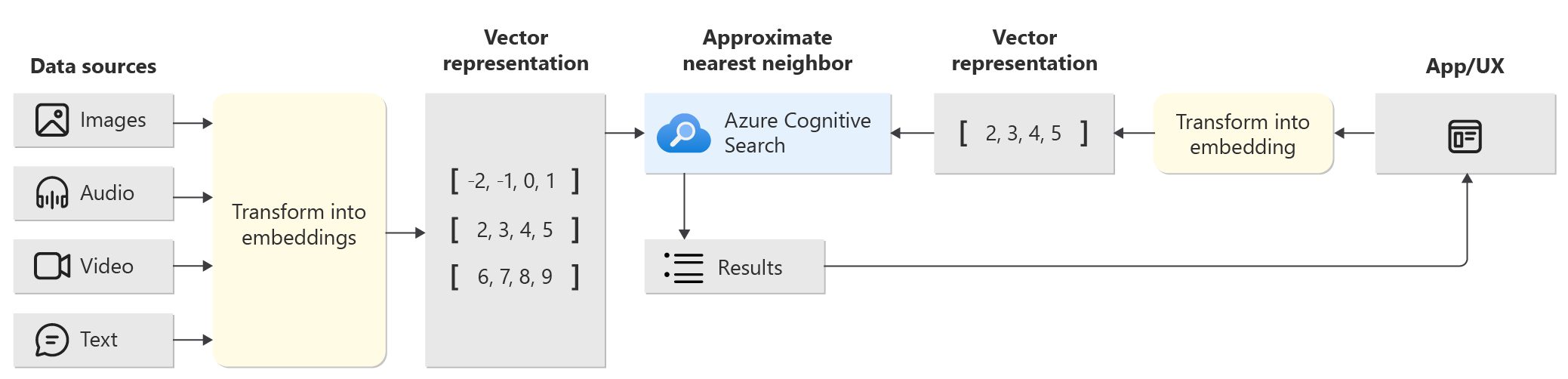
Vector search is an information retrieval approach using numeric representations of content for search scenarios. The search engine now matches on vectors that are the most similar to the query, without needing to match exact terms. This helps it power similarity search, multi-modal search, recommendations engines, or apps implementing the Retrieval Augmented Generation (RAG) architecture.
Vector search is available in Azure AI Search by default, and works as shown in the figure below. In this project, we use Azure AI Search to create a vector store for the product information data, then use Azure Open AI text-embedding-ada-002 deployment for embedding data in vectors, for more efficient search and retrieval later. | See Vector search in Azure AI Search for more details.
Learning Resources
- Azure AI Studio - UI to explore, build & manage AI solutions.
- Azure AI Studio Docs - Azure AI Studio documentation.
- Azure AI Services - Azure AI Services documentation.
- Training: Using vector search in Azure Cognitive Search
- Tutorial: Deploy a web app for chat on your data
- Quickstart: Moderate text and images with content safety in Azure AI Studio
Next Steps
To build our copilot solution, we first need to setup our development environment with the right tools, libraries and content (e.g., custom data sources) to work with Azure and Azure AI resources.